
The Shop template is made up of both a page and a data entry, which contains a shop’s basic information such as contact details, location and opening times. For more information, see Shop page and shop data.
Shop temporary closure/reopening checklist
One of the most common changes required for shops is to mark them as temporarily closed and then re-open. To do this, remember you’ll need to make changes to both the Page – Shop and Data – Shop:
Page - Shop
-
Add or remove '- temporarily closed' in both title fields - internal and title
-
Add or remove Shop temporary closure notice (see more detailed guidance below)
Data - Shop
-
Add or remove '- temporarily closed' in Shop name (this means it will display as temporarily closed on the Find a Shelter Shop page)
-
Update opening hours using the 'closed' checkboxes
Adding temporary closure notice
-
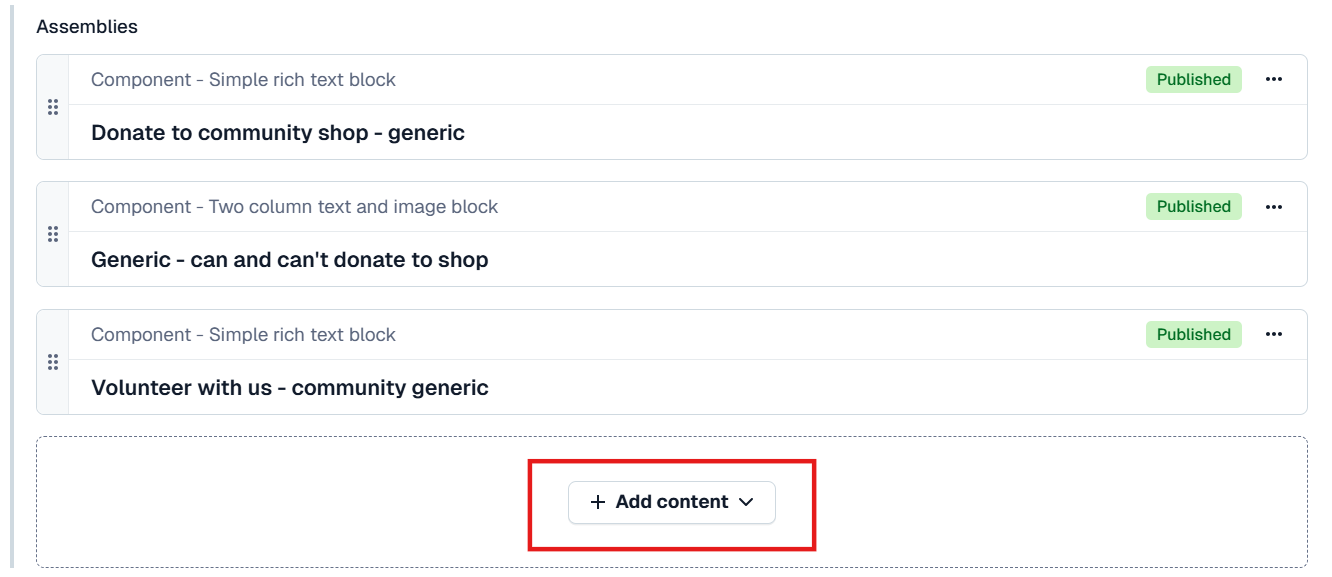
Scroll down to the Assemblies section and click 'Add content' at the bottom
-
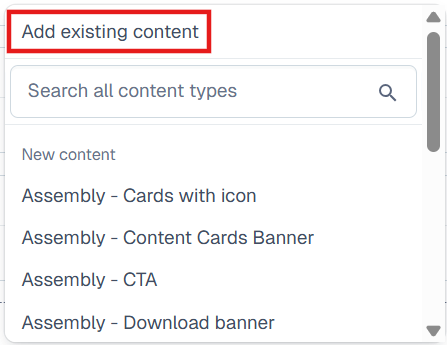
In the dropdown menu that appears, click 'Add existing content'
-
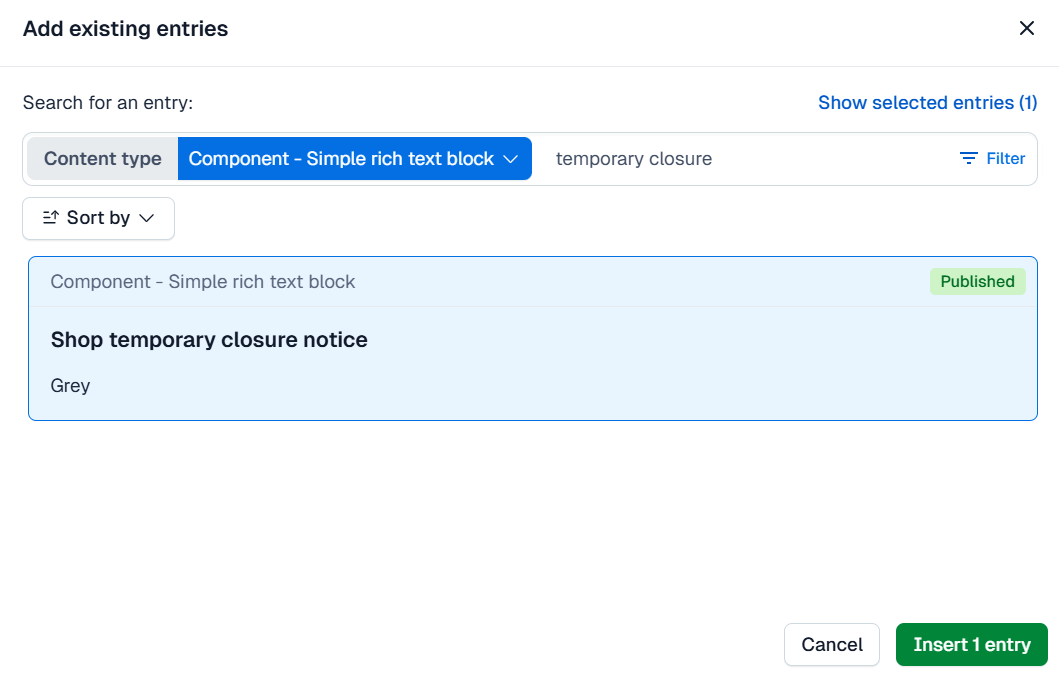
In the window that appears next, click on the 'Content type' menu and select 'Component - Simple rich text block'. Then type 'temporary closure' into the search box.
-
The correct component should appear first in the list, it's called Shop temporary closure notice. Select this component then click 'Insert 1 entry'.
-
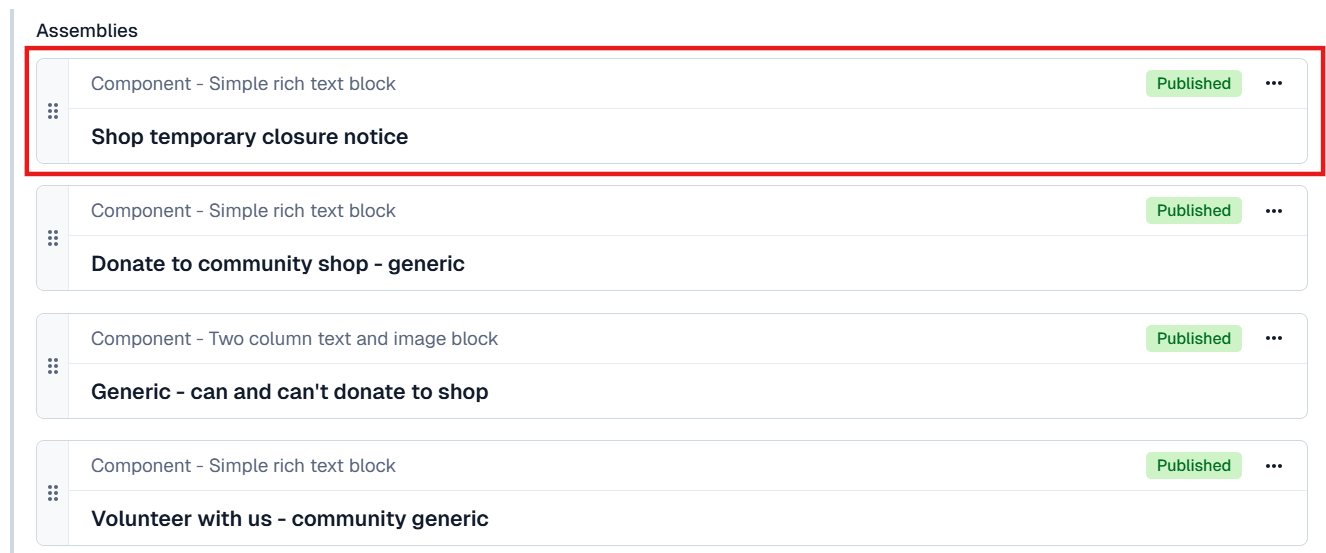
Finally, the temporary closure notice will automatically be added to the bottom of the 'Assemblies' section. We need it to be at the top, so click and drag (using the six dots on the left hand side). Done!
Removing temporary closure notice
To remove the temporary closure notice when a shop reopens, click the three dots in the top right corner of the component and select ‘Remove’.