
The workflow tool allows teams to create a bespoke process for the publishing of content so that edits can be checked by relevant teams before they are put live.
This guidance explains how to set up a new workflow (known as a ‘workflow template’ in Contentful) and how to see an overview of all content currently sitting in the workflow tool.
For information on how to submit work into an existing workflow for review, see the content manager’s workflow guidance.
Using the workflow dashboard
-
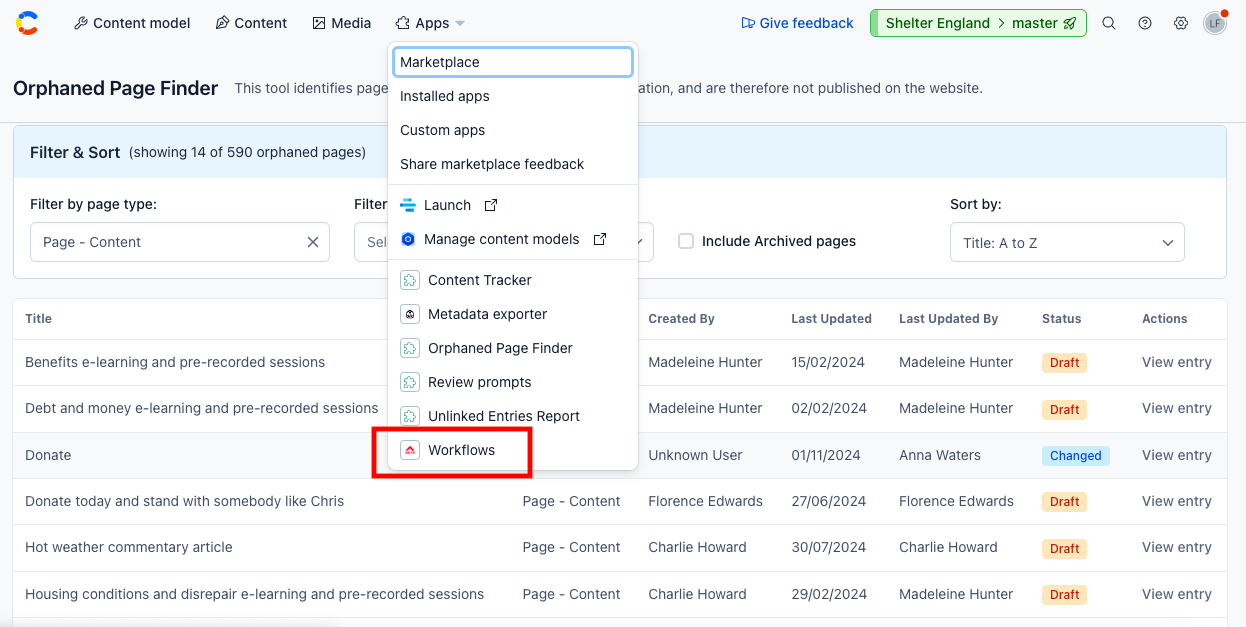
To open the workflow dashboard, choose the ‘Apps’ tab in the top menu of Contentful and click on ‘Workflows’.
-
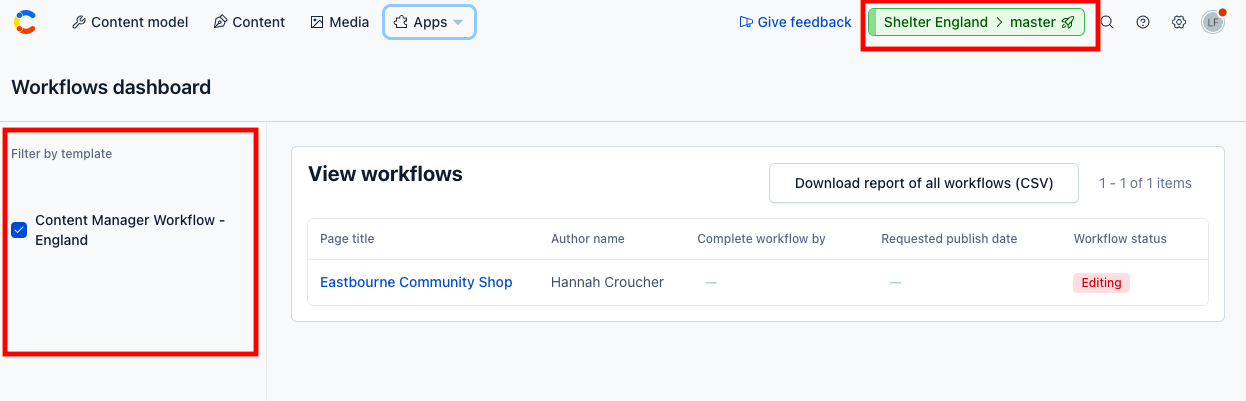
In the lefthand column of the dashboard, you will see all the existing workflows set up for the environment. Tick the relevant workflow to see all content currently being worked on.
-
It’s worth noting that workflows must be set up individually for England and Scotland in the relevant environments, so you would need to check both environments to see all work in progress relating to a section of content that sits on both websites.
-
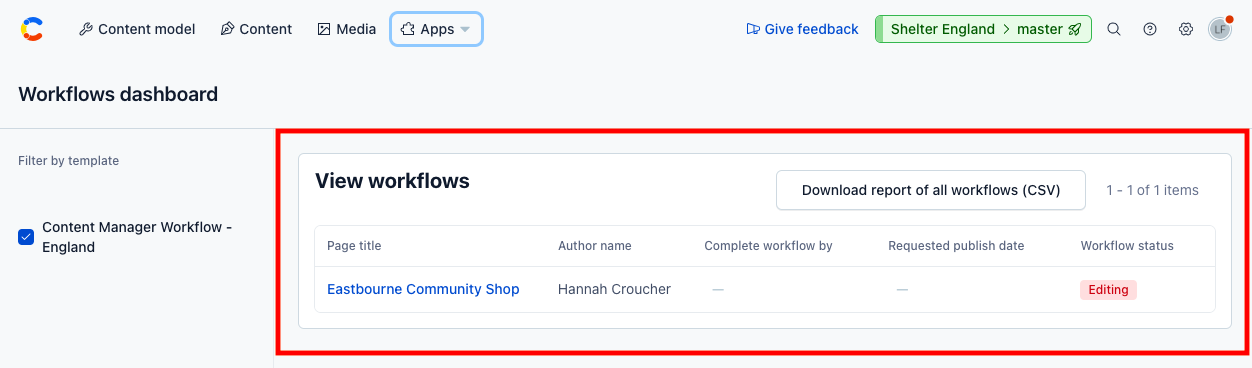
In the main area of the dashboard you will see each page being worked on listed by page title along with information about who is editing the content, the stage in the workflow that the content is at (e.g. ‘editing’ or ‘ready to publish’, and if there is a requested publish date.
-
You can click the page title to open the entry for each piece of content.
-
The workflow status relates to the stages in the workflow. This will be ‘editing’, ‘in review’ or ‘ready to publish’, however, it’s worth noting that there may be several ‘editing’ or ‘in review’ steps depending on the bespoke workflow template.
-
You can download a report of all workflows in .CSV form using the button on the dashboard.
Setting up a new workflow template
Only users with admin permissions can currently set up new workflow templates.
-
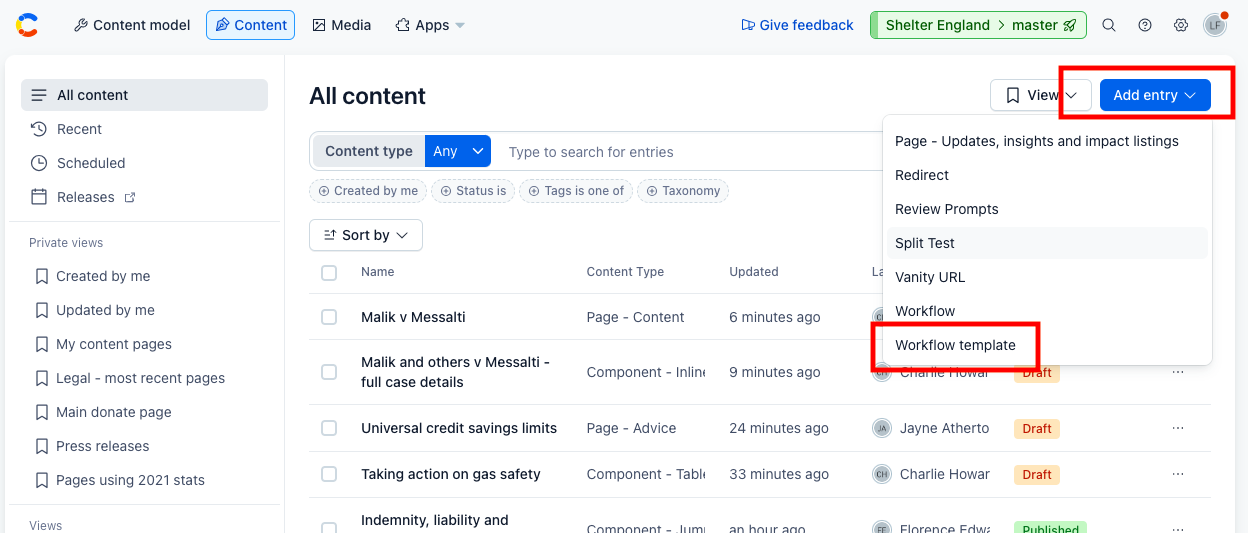
To set up a new workflow, you will need to be in the Content tab in Contentful.
-
From here, click ‘Add entry’ and choose ‘Workflow template'
-
Give your template a name and begin to build each step in the workflow.
-
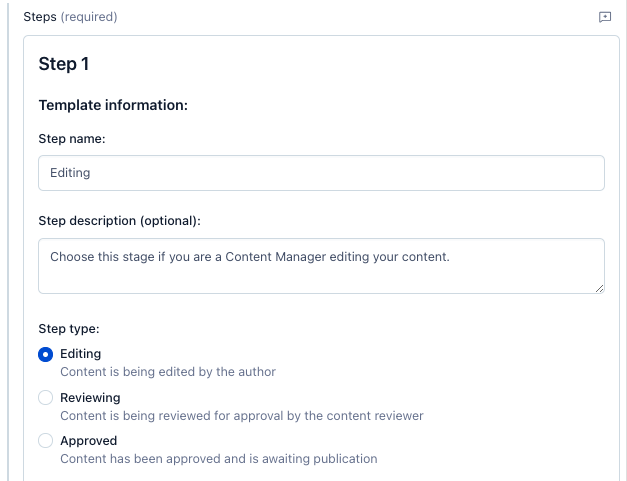
For each step, you will need to add a step name and step description. These need to make it clear to the user what is happening and how they should use that step.
-
Next choose a step type. These usually consist of an ‘editing’, ‘reviewing’ or ‘ready to publish’ step. Usually there will be one ready to publish step, but there can be as many editing steps and review steps as you need. Only create new editing or review steps to send content forwards to users who have not already edited/reviewed content and need to complete this action separately.
-
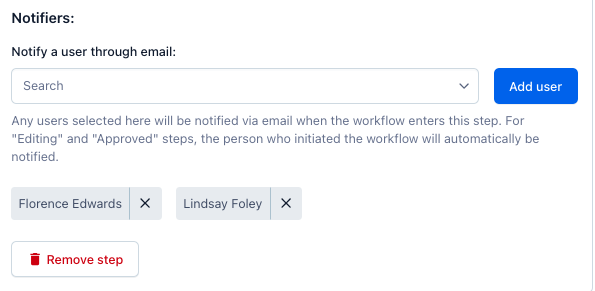
You then need to add everybody who needs to be notified when content enters this step of the workflow. You can add multiple users if necessary, but they will need to have a Contentful account to be added. It’s worth noting that the person who initiates the workflow will automatically be notified by email when content enters the editing and ready to publish steps, so you don’t need to add them manually. This is so lots of different editors can submit content into the workflow (and be notified if an editor pushes content from review backwards into the editing stage), but we can personalise which editors review content and are notified at whichever step(s) we need them to be.
-
Once you’ve filled in each of the fields on your step, repeat the above for each additional step in your workflow.
-
When your workflow is complete, click ‘Publish’ to make your workflow available in the system. When users come to choose a workflow to submit their page edits into, they should now see your workflow available to select. Any page being edited in your workflow should also now be visible in the workflow dashboard.
A finished workflow template may look something like the below:
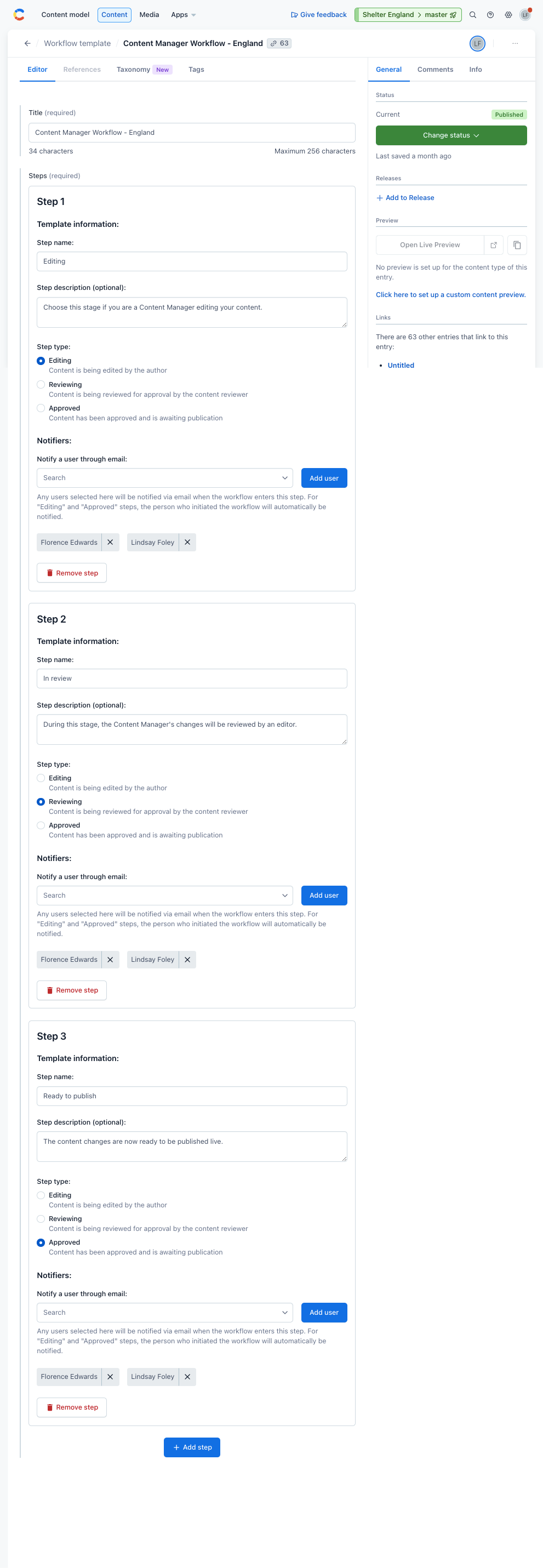
You can also see the other existing workflow templates in Contentful for inspiration by filtering by content type for ‘Workflow template’.