
Contentful’s Media library is where we store images and downloadable assets for use on our websites. Each space (England and Scotland) has its own library and content must be uploaded to both environment separately.
This page explains our guidelines around managing images and other assets including our image naming conventions and how we use tags to make content findable. You can find out how to add and remove images and assets on this page.
Images
Format
Contentful allows you to upload images in the format JPG, PNG, GIF, SVG and TIFF but photos should always be uploaded as a JPG. Non-photographic images such as logos may be uploaded as a GIF but a JPG is preferable.
Always convert a PNG to JPG before uploading. The only exception to this rule is when using the Campaign Hero, where the image uses a cut out PNG with a clear background.
Image size
Contentful’s images API means that you generally don’t need to resize and reshape your image for use in different types of component. While there is technically a 20mb size limit on images you upload, please aim to use images that are less than 5mb in size. Usually medium/lower resolution images in Story House are around the right size.
While Contentful will also reshape your image for the type of component in which you are using it, there are certain contexts when you may need to crop your image before publishing to make sure your image maintains the best focus. Two examples of this are the Brand Hero (which works best with a square crop) and the Content Card (which uses a 16:9 crop). You can use Contentful to crop your images when uploading content, which is explained more in the adding an image section.
Image naming
Image names should provide information about what the file contains and how it relates to other images in the system, so that opening the file isn't the only way to understand what is inside. This will further support image organisation and findability.
When uploading an image into the system, we will look to include the following in the image name:
-
Subject - who or what is the image of
-
Description - what are the identifying features of the subject that support understanding of the subject
-
Year of shoot (or upload date if this is unknown) - to make it clear how old (or new!) the image is compared to similar files in the library
Optional extras:
-
Location - if including a location adds value for people searching the library, also include it in the file name
-
Crop - this should only be used in the format of 'square' or 'content card
The image name should aim be structured as follows:
Subject (who or what) + description + [location (where applicable)] + year of upload (yyyy) + [- crop (use ‘square’ or ‘content card’ only)]
For example:
Angela and Kardi hug in garden 2024
Retail volunteers serve customers at King's Cross Boutique 2025
Graph showing composition of houses in temporary accommodation in England 2025
B&Q logo 2024
Shelter CEO Polly Neate headshot 2022 - square
Social housing in Lambeth 2025
Rented housing in state of disrepair 2025 - content card
Rainy street at night time 2024
Sometimes names will vary from above formula, but should include same elements as far as possible:
Smiling runner takes part in London Marathon 2025
Image naming dos and don’ts
Do:
-
use the present tense
-
use sentence case (where the only words capitalised are the first and any proper nouns)
-
use spaces instead of hyphens or underscores
-
aim to keep names 6-8 words maximum
-
keep names to the point - the description field can be used for further info
Don’t:
-
use special characters
-
use acronyms
-
include info about the type of asset (e.g. ‘photo’ or ‘image'
-
include version numbers
-
include info about where the image is used (e.g. ‘cash appeal' or ‘homepage’)
Tags
We use tags on images for two main purposes:
-
Expiry date - when adding new images, always check if it has an expiry date (this info will be available on Story House). If it has an expiry date, add it to your content in the format Expiry: mm/yy.
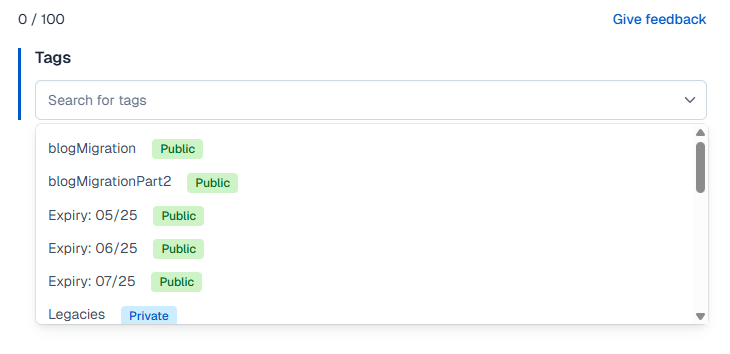
An example of the expiry date tag in use in Contentful
-
Theme - when adding a new image, you can also tag it by one of the following themes:
- Theme: logo
- Theme: headshot
- Theme: events
- Theme: case study
- Theme: housing internal
- Theme: housing external
Please do not add extra theme subtypes without agreeing it with the team first.
To see how to add a tag to your content, see the adding images and assets page.
Other assets
Format
Aside from the image types listed above, the following file types can be uploaded into our media libraries:
-
Presentation – PPTX
-
Rich text – Word .doc, RTF
-
PDF
-
Spreadsheet – .xls, .csv
For videos please use a YouTube link and Contentful’s video embed component .
Size
As with images, assets should aim to be less than 5mb but closer to 1mb where possible.
Naming
Reports and other documents should be named simply and logically, including date of publishing where possible.
e.g. Shelter gender pay gap report 2025
Tags
While we are not explicitly using tags on other assets, it may make sense to add an expiry date to sensitive documents that will need to be removed at certain times. This can follow the pattern seen in the image tagging guidance above.
That said, it may make more sense to instead add a review date to the page in which your document sits. This will add an automated push notification to be delivered by email to the page’s content manager for a certain date, which acts as a reminder it needs updating or aspects removing.